Install Yellide
Two minutes. You will not need a terminal, and you will never type a file path.
Before you start
You need Claude Desktop, the app, not the website. A website cannot read files on your computer, so it cannot help you find your footage.
Install
-
Download Yellide
Version 0.9.23, about 45 KB. Everything Yellide does happens on your machine.
It saves asyellide-0.9.23.mcpb, if an older number is sitting in your Downloads or on your Desktop, that is not this one. -
Drag the file onto the Claude Desktop window.
Or: Settings → Extensions → Advanced settings → Install Extension…
-
You will see a red warning. Read it, then click Install Anyway.
“Installing will grant this extension access to everything on your computer. Any developer information shown has not been verified by Anthropic.”
That is true, and it is true of every local extension, including Anthropic’s own Filesystem one. It appears because we have not paid for a code-signing certificate, not because anything is wrong.
What Yellide actually does, which you can check for yourself in the source:
- Reads metadata headers, plus the first and last megabyte of each file to identify it
- Never modifies, moves, renames or deletes anything
- Sends no personal data, ever
- Skips iCloud and Dropbox placeholder files rather than downloading them
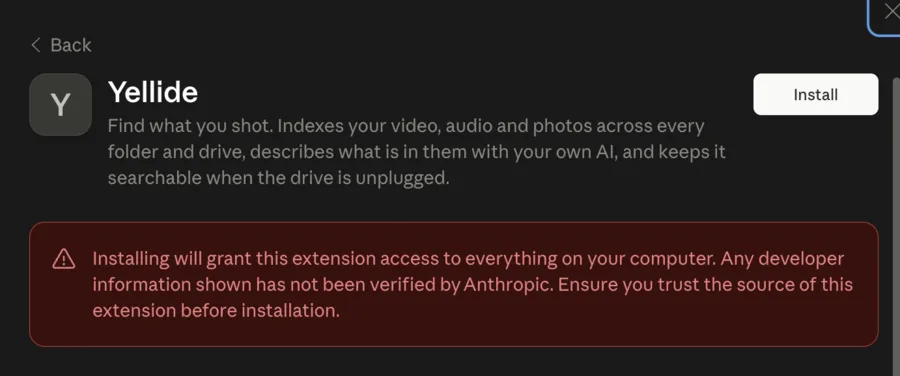
This is the screen. Install is top right, and the warning below it is the one described above. It appears for every unsigned local extension. -
Quit Claude Desktop and open it again.
Cmd-Q, not just closing the window. Extensions load at startup.
Say this first
“What media files do I have on this Mac?”
That one sentence is the whole start. Yellide finds your photos and videos by itself, begins indexing, and tells you what it found. You never pick a folder and never type a path.
Say media files on this Mac rather than my archive. The word archive is often read as your past conversations, and then you get an answer from memory instead of from your disk. Everything else worth saying is on what to say.
Then these three
Asking it to look is not the same as asking to see. When Claude says it is looking at your pictures it genuinely can see them, but you cannot: images handed to the AI are not drawn in your chat. Say show me and you get the contact sheet. This one cost us a whole release to notice.
The rest is on what to say.
Two settings worth knowing
Already have it? Upgrading
Upgrading is the same three steps, with one difference that catches people:
- Download the new file and drag it on as before.
The filename carries the version,
yellide-0.9.23.mcpb. If the number is lower than the one on this page, it is a stale download. - The button now says Update, not Install Anyway.
Dragging the file only shows you a preview of it. The preview shows the new version’s name and icon, which makes it look as though the update already happened. Nothing changes until you click Update.
- Quit with Cmd-Q and reopen.
Until you do, Claude Desktop keeps running the old code.
Check it worked at Settings → Extensions → Yellide: the version under Details should match the one at the bottom of this page. If it does not, the update did not apply.
If something goes wrong
Still stuck?
Ask Claude, in the same chat:
“Run Yellide diagnostics and show me the report.”
You will get something like this. Read it, then send it to whoever is helping you. It deliberately contains no filenames, no paths, no descriptions and no search terms, only counts and capabilities, so it is safe to paste anywhere.
YELLIDE DIAGNOSTIC REPORT
Contains no filenames, paths, captions or search terms. Safe to share.

version               0.9.23
platform              darwin arm64
can view pictures     yes, sips (built into macOS)
assets indexed        8,910
  cloud placeholders  7,862
content coverage      42% (3950 of 9446)

No obvious problems detected.
If something is wrong, the last line says so in plain words rather than leaving you to guess.
Other apps. ChatGPT, Codex, DeepSeek, Cursor
Yellide is a plain MCP server over stdio and nothing in it is specific to Claude, so any client that speaks MCP can use it. Point it at:
command: node
args:    /path/to/yellide/server/index.js
What you get depends on one thing: whether your AI can see pictures.
In practice: ChatGPT and Codex use models that can see, so both halves should work, though a capable client sometimes prefers its own file search over Yellide, and you may have to ask for Yellide by name. DeepSeek’s chat models are text-only, so you get everything except the describing pass. That is a limit of the model, not a bug, and metadata search alone is still most of a working index.
The describing pass also needs macOS today, because it makes thumbnails with
sips and video frames with qlmanage, both built in, which is
why Yellide has no dependencies. And Node 22.5 or newer: Claude Desktop bundles its own, but
other clients use yours.
Claude Desktop is the tested path. If you have the choice, start there and try the others once you know what working looks like.